Now that you've got your domain registered, it's time to add content! Today's activities will be about setting up your site for posting content, reflecting on your existing digital identity, and thinking about our class as a community.
By the end of the today's work, here's what you should have completed to stay on track:
- Set up a way to post content on your website
- Create an introductory post
- Discuss and contribute to our Terms of Use conversation
Read below to learn about how to do all of these things.
Creating Content on your Website
You registered a domain yesterday or you had already set up one in a previous class, so now it's time to organize your website so that you can add content for this class. To understand how to do this, it's important to understand subdomains and how they work, so you can consider setting up a subdomain just for your content in this class.
Consider this diagram:
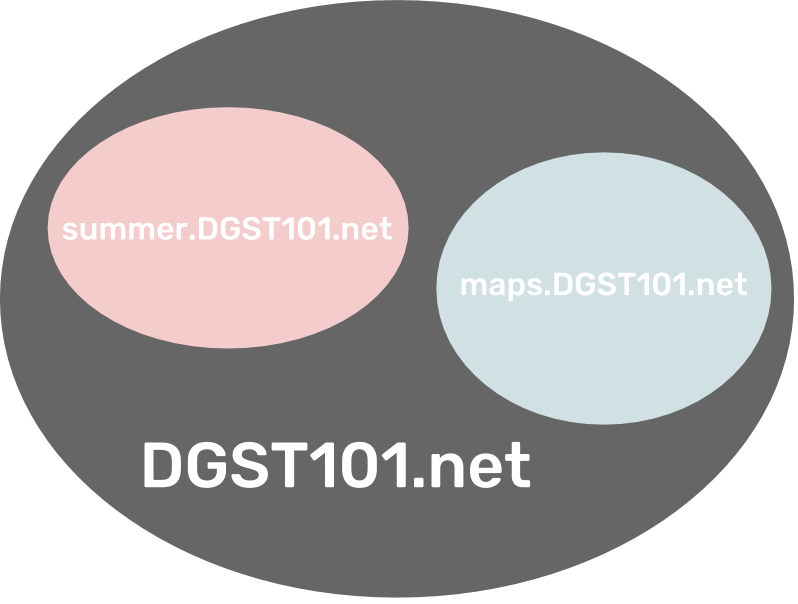
Here, the smaller circles are a separate sites within a site because they serve different purposes from the main site. As you work this semester, you'll eventually be working on your main site or front page (where you may see the bus image if you've just registered), but for now, I think it's a good idea to create content for this class in its own subdomain. There are some pros and cons to this, and it's OK to do this differently if that makes more sense to you.
- Pros
- A subdomain is a little less visible so you have more control over who sees work you post there, so think of it as a somewhat safer "practice" site
- A subdomain is something you can delete at the end of this class if you want to
- Creating a subdomain requires you to learn more about your website's architecture
- Cons
- Because your subdomain is in practical terms a separate website from your main page, you may end up with two (or more, if you've already done some of these) installations of WordPress that you'll have to keep updated.
- Understanding the folder structure can be confusing (though again, I think that's a good thing to learn about).
Once you've got your subdomain set up or decided not to use one, it's time to install some software in your website that will let you use WordPress. There are many of these available -- I generally recommend WordPress, but Grav, Anchor, Known, and Drupal are all pretty good as well, if you're ready to handly some quirkiness and a steeper learning curve -- but I'm going to assume you want to use WordPress for now.
UMW Domains has a tutorial, but there are now a couple of differences in the workflow and I have some additional caveats and considerations to add.
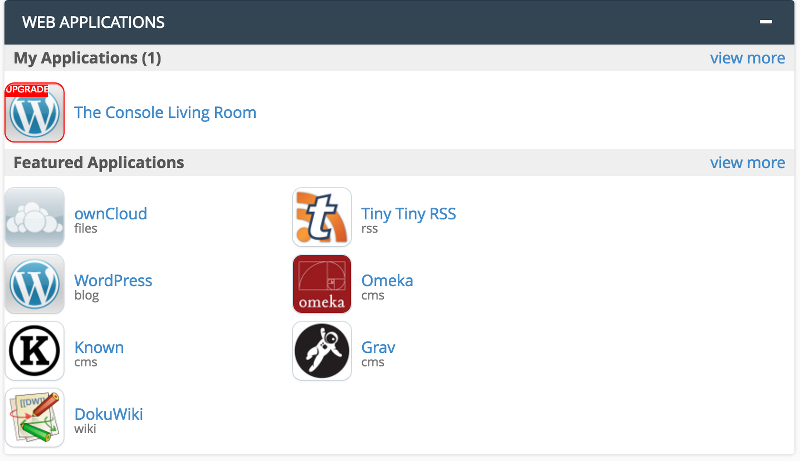
One difference from that tutorial: You won't find Installatron directly linked in the cPanel dashboard. Instead, look for the "Web Applications" area and find Wordpress or the "View More" link to see all of the options. Here's what it looks like:
Additionally, I have two more recommendations about the initial settings you create for WordPress.
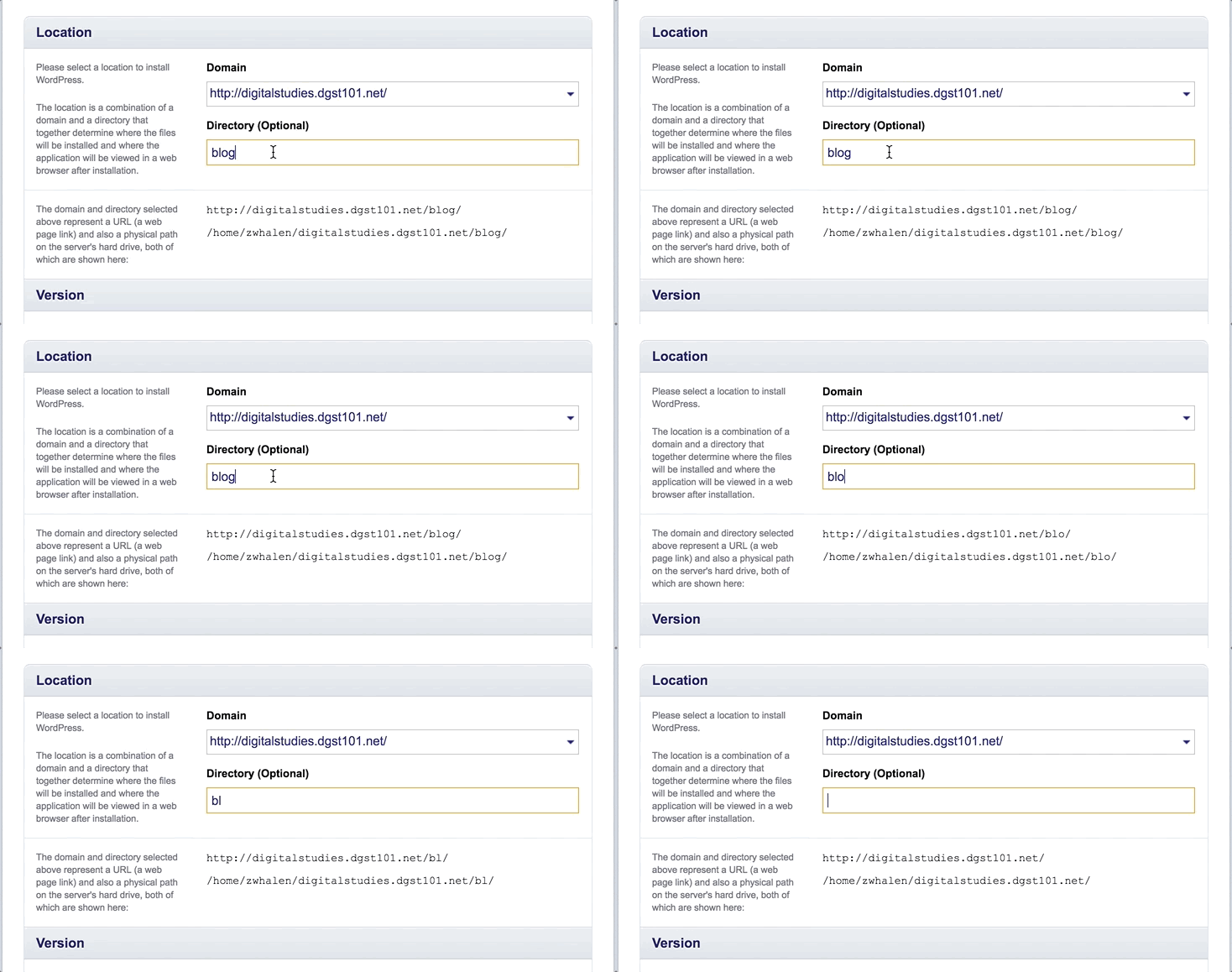
First, make sure you put it in the subdomain you just created, but do not let Installatron add a subdirectory. In the example GIF below, dgst101.net is my domain, and I'm creating a temporary subdomain called "digitalstudies". This GIF is what I see after I've found WordPress and hit the "Install this application" button.
Also, you have an important option to consider under the "Settings" block. By default, it will look something like this:
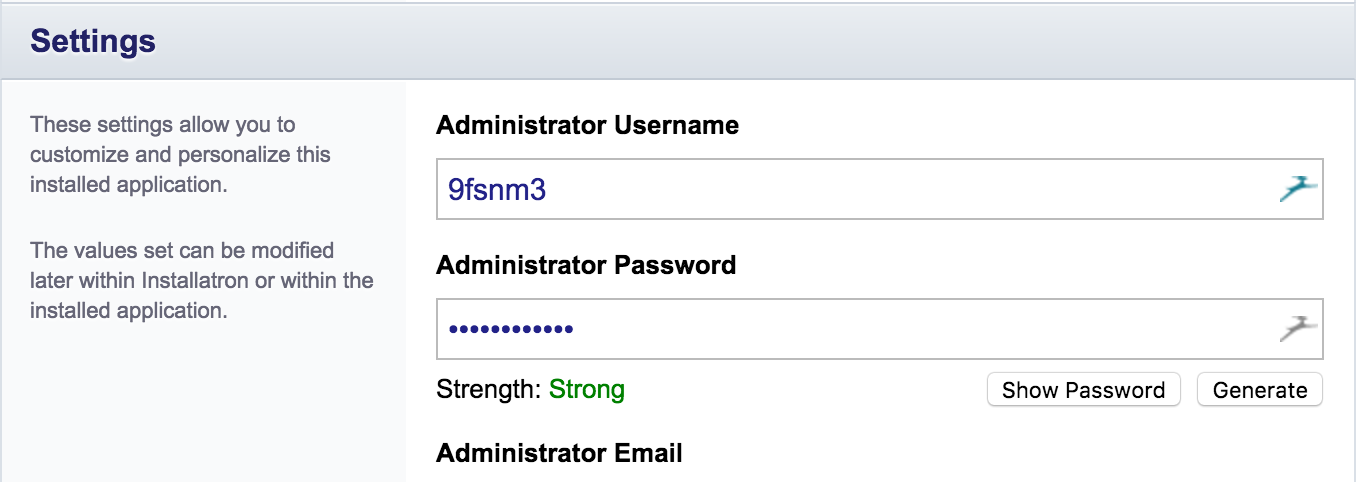
That's actually OK, because what you're doing by leaving it as the default is you're letting Installatron remember these credentials for you. In the future, you can access your WordPress by logging in to UMW.domains and finding it in your Installatron profile.
The other way is to change the username and password to something you know, so you can log directly in to your WordPress. This is quicker, but it adds the inconvenience of yet another password to remember.
It's up to you, but once you're happy with it, optinally choose the appropriate "Course or Project" and "Status" and then hit the "+Install" button. After a couple of minutes, you'll have a brand new WordPress!
Create an introductory post
Now that you've got a working WordPress, take some time to orient yourself to the dashboard. In WordPress terms, a blog entry is a "Post" so find your Posts screen and either add a new post or edit the standard "Hello World" post that you'll already have there by default.
In this post, say a few words about yourself and this website you've just set up. You should include an image and a link to practice those functions within the editor.
Explain your current setup (subdomain or not) and how you came to that decision. Explain your choice to use WordPress or something else. Do you have other websites or subdomains on this website? Link to them here. Do you have other public digital identities like in LinkedIn, Twitter, Facebook, Snapchat, Instagram? Link to them in this post, and reflect on how you represent yourself differently in these different platforms.
When you're done, hit "Publish" and share the "Permalink" URL with us in Slack.
Contribute to our Terms of Use conversation
Now that you're a website owner, you're responsible for all the content that goes there. You can post anything you want to, within legal and ethical boundaries. But there are other spaces where you have a digital presence where you have far less control over what you can or should post, and the legal and ethical boundaries may be unclear or ambiguous.
In Slack, I want us to have a conversation about the Terms of Use and "Terms of Use" of various platforms that we use on a daily basis. What I mean is, there are legally framed documents that explain and delimit what we can do on, say, Facebook. But there are social and ethical norms that delimit what we should and shouldn't do. For this discussion, I'm more interested in the latter.
So in Slack, find and join the "#terms-of-use" channel, and start or join a conversation around these terms of use. I'll post some leading questions to get things started, then once that conversation has matured, we'll create our own terms of use for this class.